glossy paper, Canon photo paper density up to 275 g/m2, photo paper, plain paper, envelopes, matte photo paper, recycled paper
Consumables
Number of Cartridges/Bottles
4 pcs
Cartridges/Ink Model
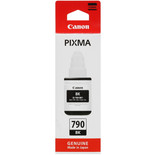
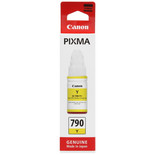
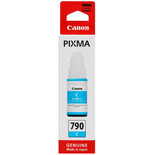
Canon GI-790 BK, Canon GI-790 C, Canon GI-790 Y, Canon GI-790 M
Black Cartridge Yield
6000 pages
Color Cartridge Yield
7000 pages
Interfaces
Connectors/Ports
USB Type-B
Memory Card Reader
none
Support
Compatibility
Windows 7, Windows 10, Windows 8.1
Mobile Printing Solutions
none
Direct Printing
none
Power Consumption and Power
Power Type and Voltage
100-240V/50-60 Hz
Power Consumption When in Use
9 W
Idle Power Consumption
0.6 W
Additional Information
On-Screen Data Display
display
Noise Level When Active
53.5 dB
Operating Temperature Range
5 - 35 ℃
Package Contents
power cable, documentation
Features
custom paper size support with width 55-215.9 mm and length 89-676 mm
Dimensions and Weight
Width
445 mm
Depth
330 mm
Height
163 mm
Weight
6.3 kg
Dimensions and Weight in Packaging
Package Width
470 mm
Package Height
230 mm
Packaging Depth
500 mm
Packaged Weight
8.94 kg
Description
The Canon PIXMA G2010 black all-in-one inkjet printer is suitable for home and office use. Despite its compact dimensions, it easily handles high-volume document printing. For this purpose, the device features a continuous ink supply system, allowing the use of high-yield ink bottles. Black-and-white printing operates at a speed of 8.8 ppm, while color documents print at 5 ppm. The printer supports paper with a density of 64–105 g/m²: plain, matte, recycled, and photo paper.
The Canon PIXMA G2010 inkjet all-in-one printer is equipped with a flatbed scanner that scans documents at a resolution of 600x1200 dpi. With a 100-sheet input tray capacity, a large volume of documents can be printed in a single run. The all-in-one printer comes with 4 ink bottles containing color and black inks, sufficient for printing up to 6,000 black-and-white pages and 7,000 color pages. A digital display and indicator buttons help quickly configure device parameters and manage them during the printing process.